
Microsoft Outlook 2000 - Account Setup
If you're having difficulty setting up your email account with Outlook 2000, follow these instructions:
Select Tools...Accounts
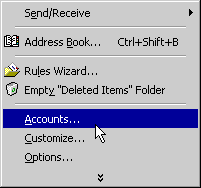
This will open the following window:
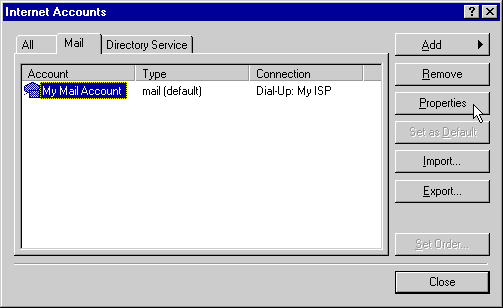
Select your current account and click on the Properties button. The Properties dialog is shown below:
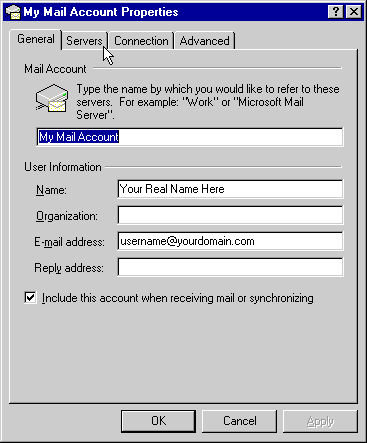
Fill in the following information:
| Name | Put your real name here |
| Email Address | Your email address is username@yourdomain.com |
Make sure that the Include this account when receiving mail or synchronizing option is checked. Now click on the Servers tab to bring up the following dialog:
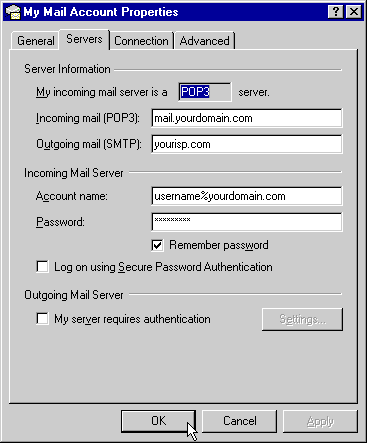
Fill in the following information:
| Outgoing mail (SMTP) | Your SMTP server is yourisp.com. (Get this information from your ISP.) |
| Incoming Mail (POP3) | Your POP3 server is mail.yourdomain.com |
| Account name | Your POP3 Account ID is username%yourdomain.com |
| Password | Your password is personally given to you |
Click on OK to save these settings. You can now send and receive mail with your MacServe.net email account.